Countdown timer for TikTok LIVE Studio
Updated
LIVE Studio can show a web page in your scene. Add the timer as a Link source and it sits over your video with a clear background. No account, no plugin, one URL.
Some guides say LIVE Studio has no browser source. It does. The menu calls it Link, and it takes a web address. This page was written after setting the timer up in the app, and the parts it couldn't check are listed at the end.
What you need
- TikTok LIVE Studio, signed in. You can build the scene before your account is cleared to go live.
- The free stream timer builder, or the example URL below.
Step 1: make the timer
Open the builder. Set the time, type a message, and pick a theme. Under OBS source size, choose Vertical, 1080 × 1920 so the preview matches a portrait scene. A new setup already has Transparent background on. Click Copy OBS Source URL. The button names OBS, but the URL is a plain web page and LIVE Studio reads it the same way.
Or use this one as it is:
https://timerbox.app/stream-embed/?duration=10m&message=Starting+soon&theme=sundial&transparent=true
Step 2: add a Link source
- In LIVE Studio, under your scene's source list, click Add source.
- Choose Link in the General group, then Add.
- Paste the URL into the Link field. The preview above it starts counting straight away. It runs its own copy of the page, so it won't match the one in your scene to the second.
- Turn on Custom resolution and enter W 1080 and H 1920 for a timer that can fill the scene. For a strip across the top, use 1080 by 400.
- Click Add source.
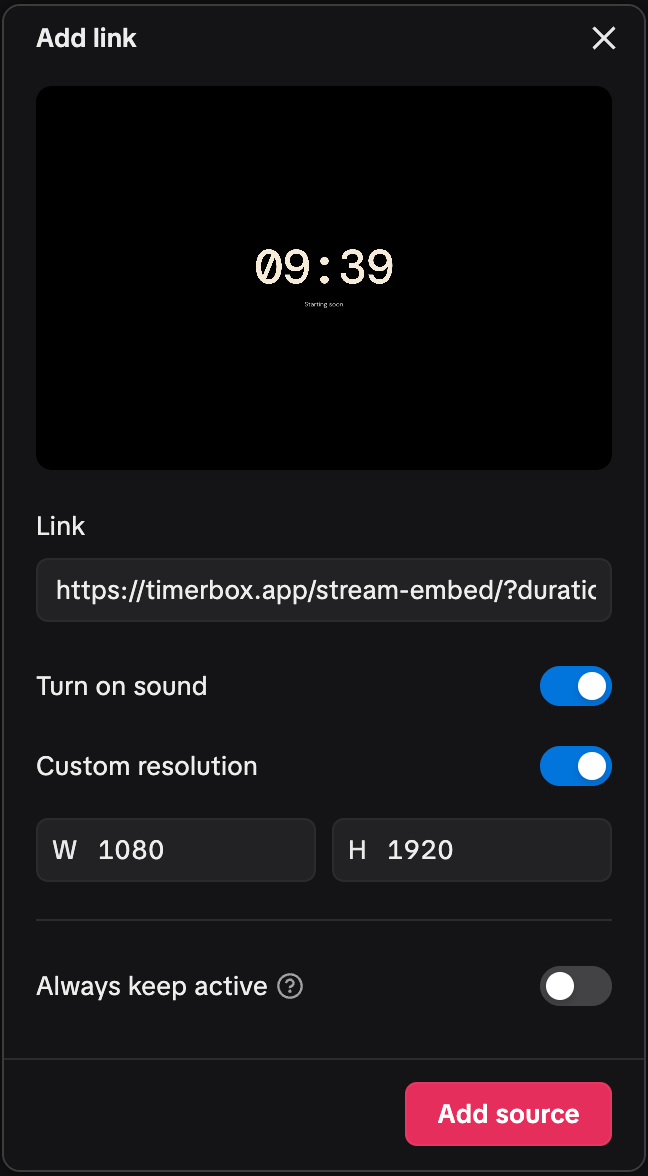
Custom resolution sets the size the page is drawn at, not the size it takes in your scene. That comes next.
Step 3: fit and place it
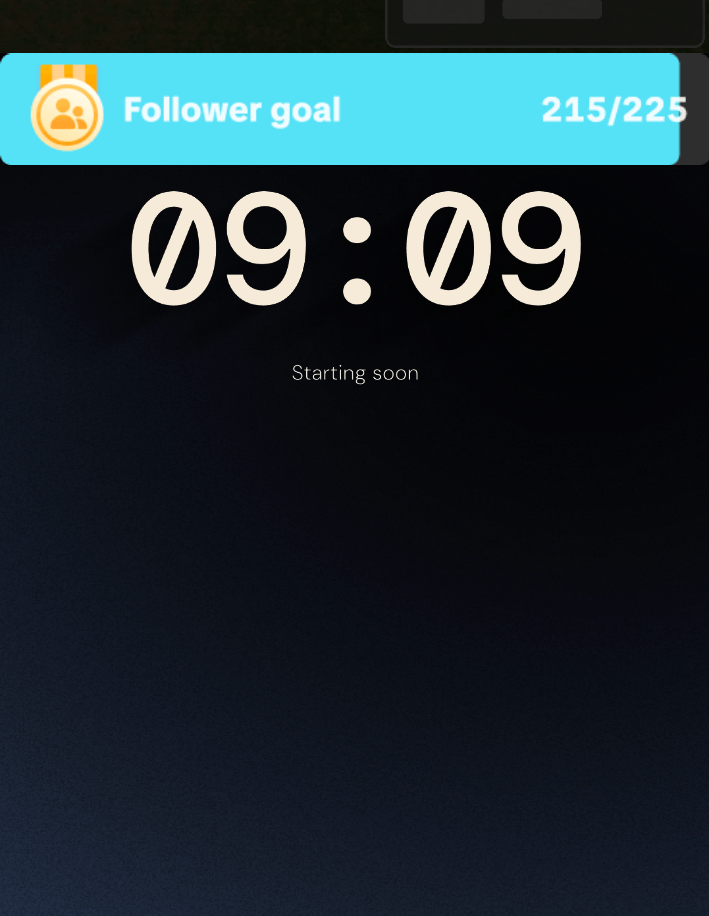
A new Link source arrives small. Click it in the preview, open the fit menu in the toolbar above the scene (the arrows icon next to the refresh button), and choose Fit. At 1080 by 1920 it now covers the scene. Drag it to move it. The timer's background is clear, because a new setup starts that way and the copied URL carries the setting, so whatever sits below shows through.
Sound
The dialog has a Turn on sound switch, on by default. Pick None under Sound at zero in the builder for a silent timer. Sound wasn't tested here, so check your own mix once before you count on it.
Portrait and the wide layout
LIVE Studio keeps a separate scene list for Portrait and for the wide layout. A Link source added in one doesn't appear in the other, so add the timer in each layout you use.
Switching layouts reloads the source, and a plain countdown starts again from the top. If the timer must survive a switch, set it To a clock time in the builder, or turn on Resume after reload. The dialog's Always keep active switch says it keeps the source active across scenes for instant loading, and warns that it uses more resources. That one wasn't tested.
LIVE Studio has a countdown of its own
Under Add source, in the Widget group, sits Countdown. It has a fixed mode, an extendable mode where viewers add time with Gifts or Super Fan subscriptions, and three styles: plain digits, a dark disc, and a dark rounded plate. If a fixed countdown in one of those styles is all you want, or you want gifts to add time, use it. It's in the same Add source menu and needs no URL.
Use TimerBox when you want a theme, a message under the digits, a countdown to a clock time, a run that survives a reload, overtime past zero, or one URL that also works in OBS.
Other apps
The URL is a plain web page, so any app with a web or browser source can show it. In OBS, use a Browser source with Width 1080 and Height 1920, which is the builder's Vertical preset. OBS is where the timer has been measured; the setup guide covers it.
What we checked, and what we didn't
The Link source, the clear background, the dialog's controls, the fit menu, and the layout switch were all checked in the Mac app in September 2026, and the screenshots come from that build. Not checked: the Windows app's menus, which weren't opened for this guide; what viewers see once you're live, because the test account couldn't go live; whether the sound switch changes what the mix hears; and whether hiding a source stops its page.
Questions people ask
Does the timer need an account?
No. The URL holds every setting, and there's nothing to sign in to.
Can viewers add time with gifts?
Not with TimerBox. The app's own Countdown widget does that.
Why does the timer restart?
Because the page reloaded. A layout switch does that. Opening a source for editing doesn't: the dialog shows a second, fresh copy while the scene keeps running. A plain countdown starts from the top after a reload. Use a clock time or Resume after reload to keep one run going.
Can I use a paid theme?
Yes. Previews are free and the key unlocks copying the URL. A paid theme is the same one URL, so the Link source takes it the same way. Sundial is the one that was loaded in the app.