Pomodoro timer for OBS
Updated
A focus timer and a break timer, one OBS scene each. When you switch scenes, OBS reloads the timer that comes up and it starts from the top.
You need OBS, the free stream timer builder, and about ten minutes. No plugin, no account. A plugin can do the scene switching for you later, and that part is optional.
What you're building
- A Focus scene with a 50-minute countdown.
- A Break scene with a 10-minute countdown.
- Two OBS checkboxes that make each countdown restart when its scene appears.
Fifty and ten is a common study-with-me split. The classic Pomodoro is 25 and 5. Both work the same way here, and the numbers are yours to change.
Step 1: make the Focus timer
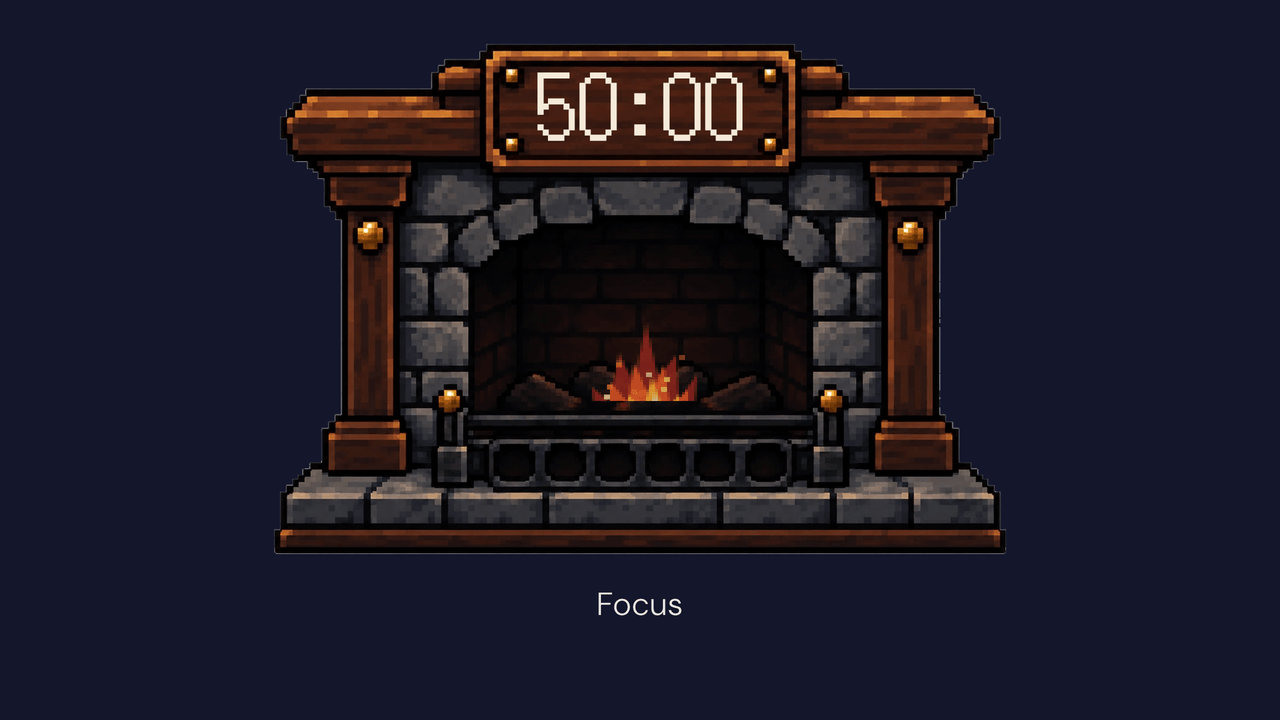
Open the builder. Set the countdown to 50 minutes, type Focus as the message, and choose a sound under Sound at zero so you hear the end. Pick a theme. Emberlight Hearth is free and burns down with the clock, which suits a long sit. Click Copy OBS Source URL.
Or use this URL as it is:
https://timerbox.app/stream-embed/?duration=50m&theme=emberlight-hearth&message=Focus&sound=bell
Step 2: make the Break timer
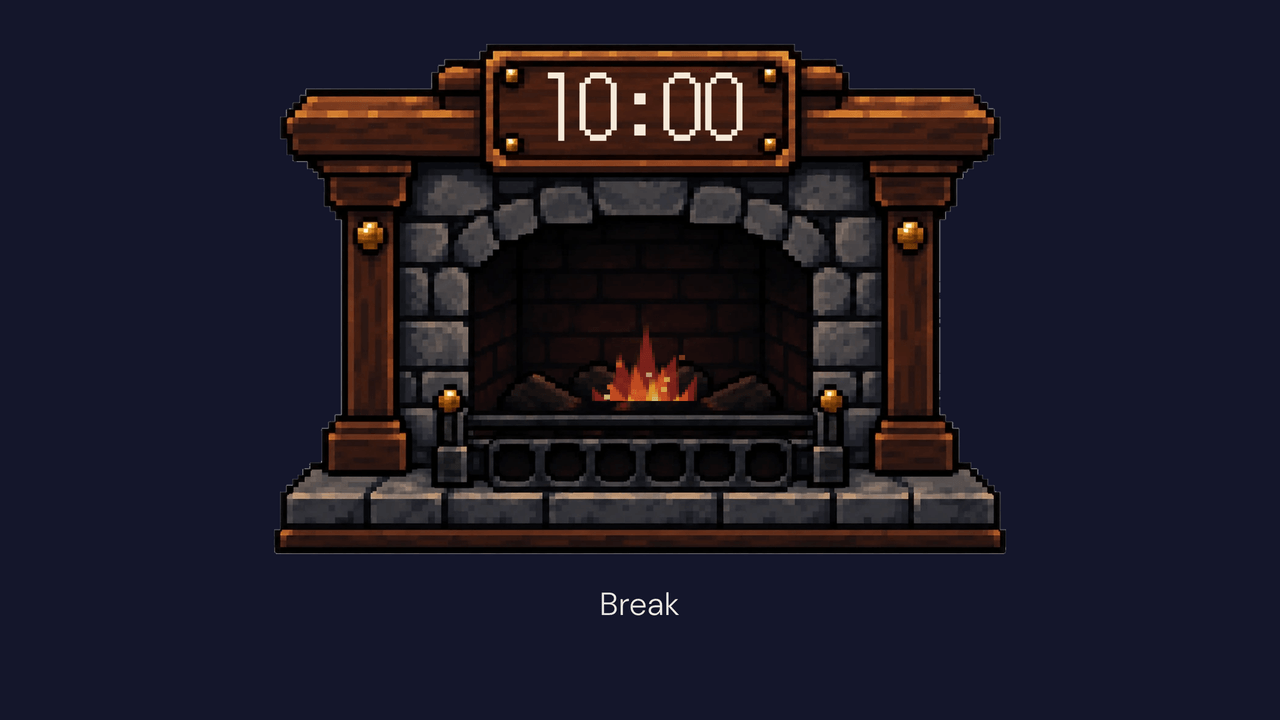
Same builder, 10 minutes, message Break, same sound, same theme. Copy the URL. Or:
https://timerbox.app/stream-embed/?duration=10m&theme=emberlight-hearth&message=Break&sound=bell
Step 3: two scenes in OBS
- Create a scene called Focus. Add a Browser source, paste the Focus URL, and set the Width and Height the builder showed you (1920 by 1080 for a full-screen timer, smaller for a corner).
- In the same source dialog, turn on Shutdown source when not visible and Refresh browser when scene becomes active.
- Create a scene called Break and do the same with the Break URL.
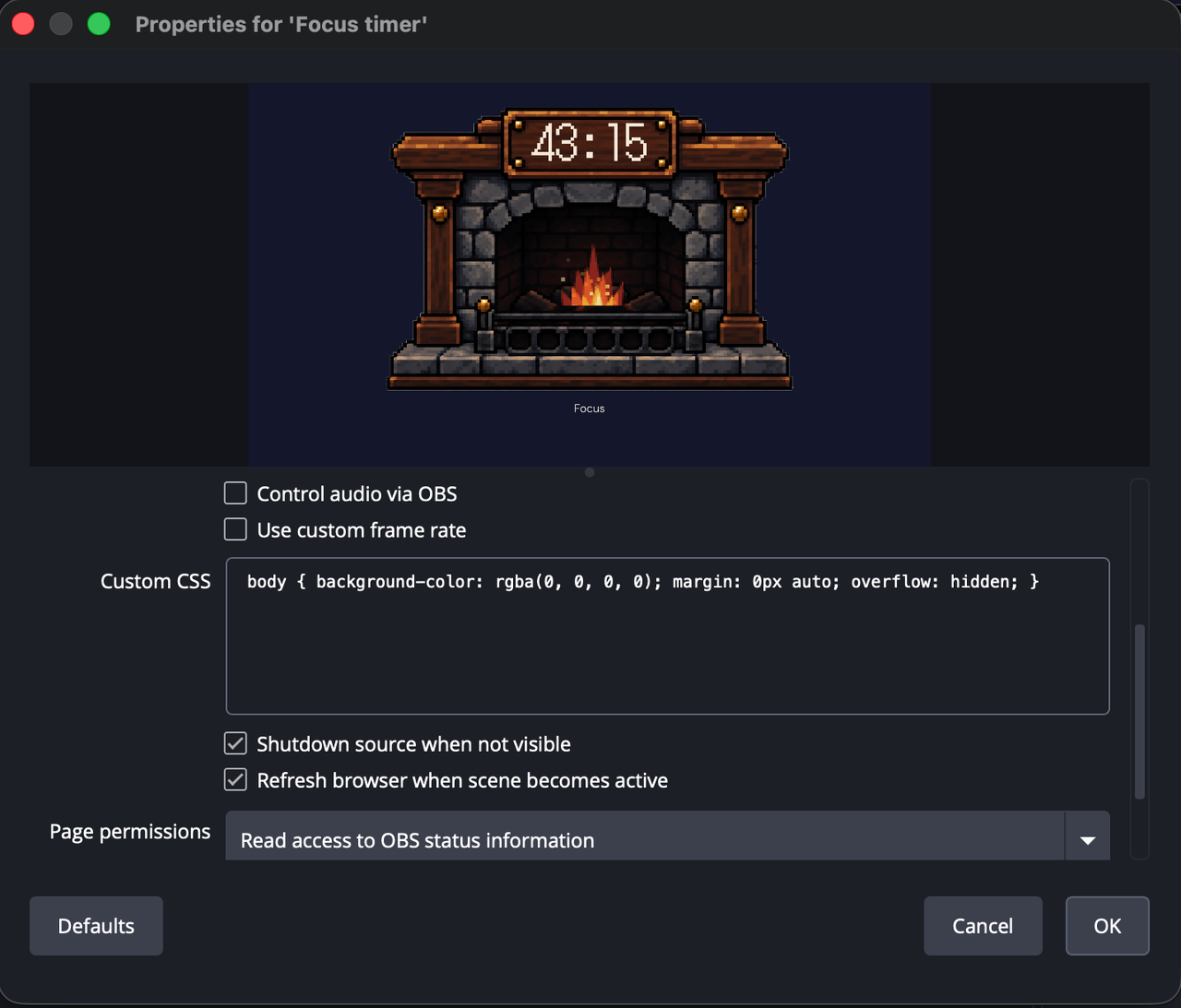
Shutdown stops the timer's page while its scene is hidden and reloads it when the scene returns. Refresh reloads it when the scene becomes active. Either reload starts the countdown again from the top. Leave Resume after reload off in the builder, because here a fresh start is the point.
Step 4: switch when the bell rings
When the Focus timer hits zero, switch to the Break scene. When Break hits zero, switch back. Click the scene, or give each scene a hotkey under Settings, Hotkeys, Switch to scene.
To make the switch happen by itself, install Advanced Scene Switcher, a free OBS plugin. Set up one rule that switches to Break after the Focus scene has been up for 50 minutes, and one that switches to Focus after Break has been up for 10. Match those times to your timers and the loop runs unattended.
The 25/5 version
Change the durations to 25 and 5 minutes. After four rounds, the method calls for a longer break of 15 to 30 minutes. Make a third scene, Long break, with its own countdown, and switch to it every fourth time.
Sound on stream
The bell plays through the browser source, so OBS can put it in your stream audio. Check the mixer once before you go live. If you'd rather hear it yourself and not send it out, set that source's audio to monitor only. Pick None in the builder and the timer stays silent.
Questions people ask
Does the timer keep counting while its scene is hidden?
Not with Shutdown on. The page stops, and it reloads at the full time when the scene returns.
Can the timer switch the scene on its own?
No. A browser source can't control OBS. Hotkeys or Advanced Scene Switcher do that part.
What if I run over?
Turn on Overtime for the Focus timer. At zero it keeps counting up, so you can see how far past the mark you went before you switch.
Can I use a paid theme?
Yes. Previews are free and the key unlocks copying the URL. Every theme works the same way in this loop.
Not streaming?
The Pomodoro timer runs the loop in a browser tab, keeps a session history, and needs no OBS at all.