TimerBox

Works with OBS, Streamlabs, and any browser source.

Open stream builder

Loading Ceramic Tile preview

Preview paused

Timer theme

Ceramic Tile

A kiln tile, re-glazed once a minute.

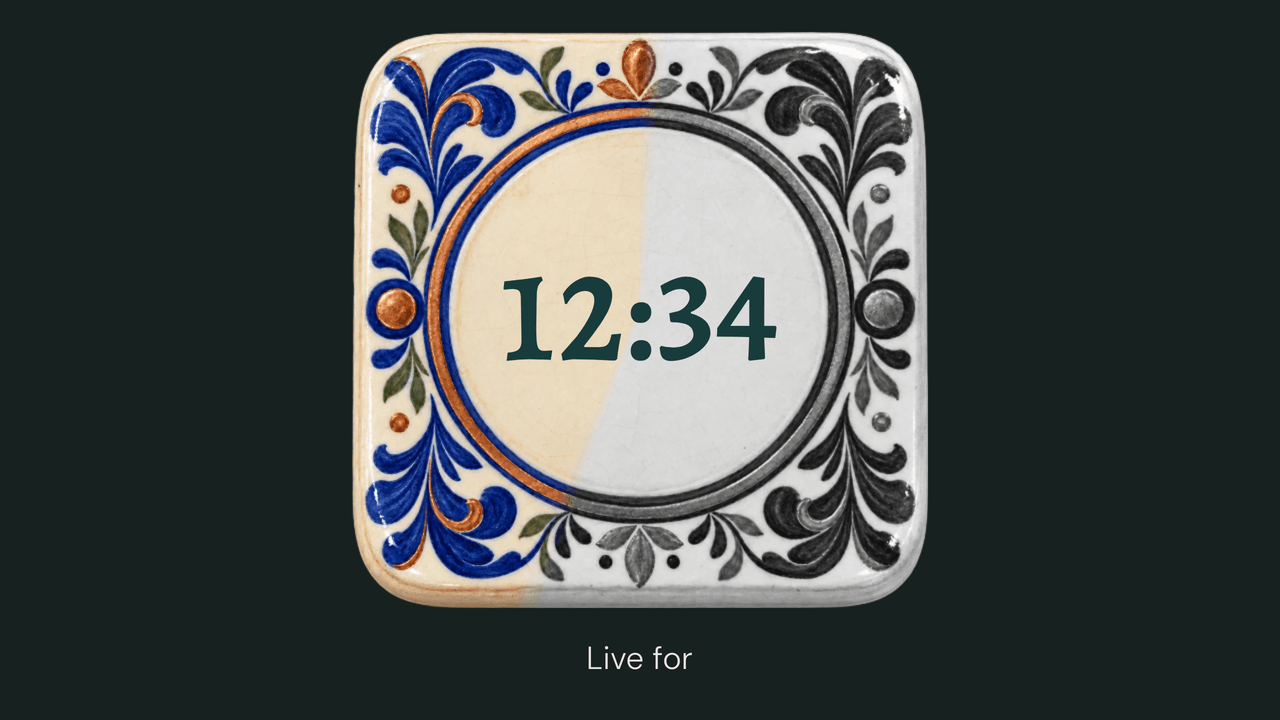
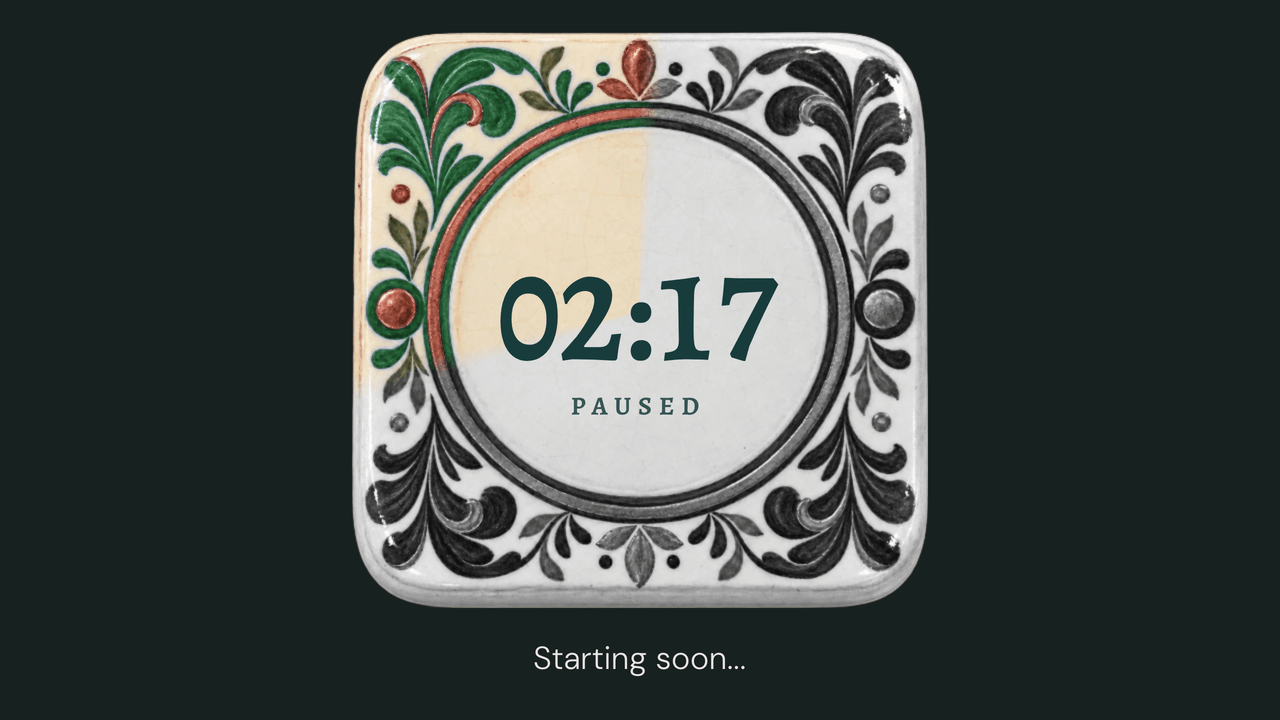
A kiln tile with four glazes. Every minute a new glaze pours clockwise across the face, and the seam lands exactly on the tick. The time sits plain in the glaze circle.

OverlayFull background
Use Ceramic Tile

See it in your scene

16:9Full background
16:9Overlay on stand-in scene art
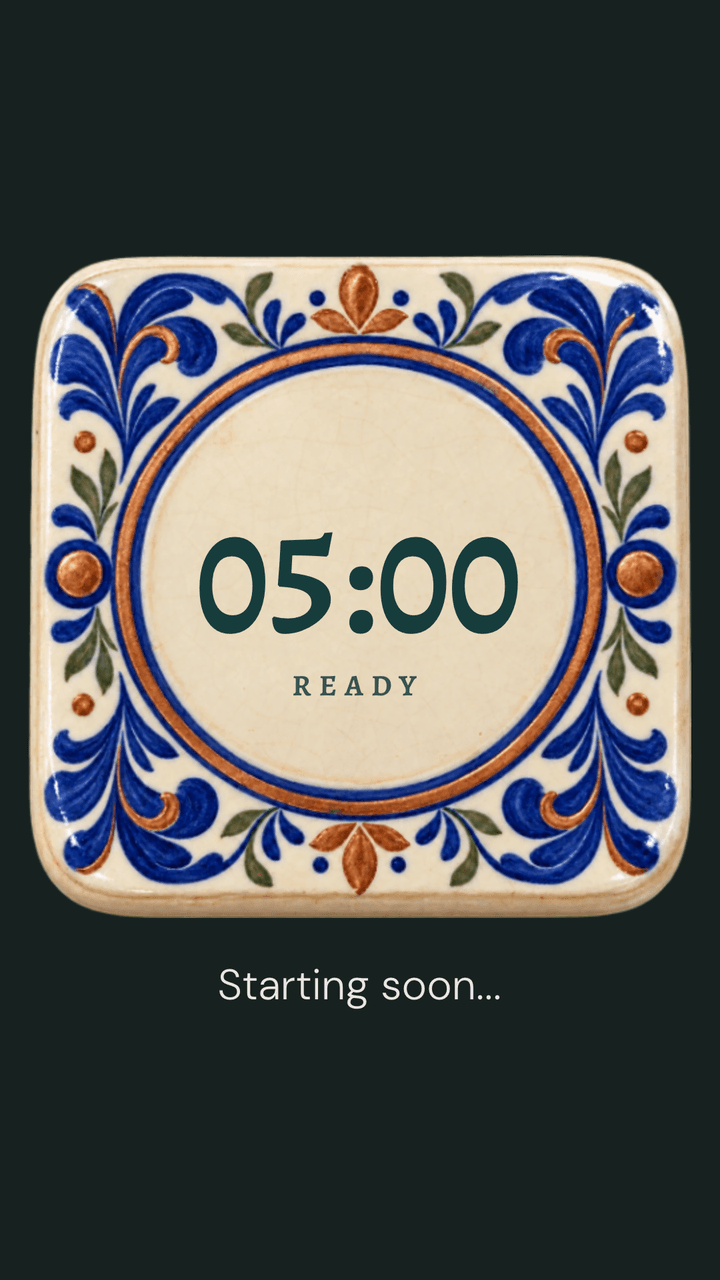
Ceramic Tile in a vertical 9:16 frame
9:16Vertical

Every state

What Ceramic Tile looks like at the moments a preview never reaches. Captured from the same renderer OBS runs.

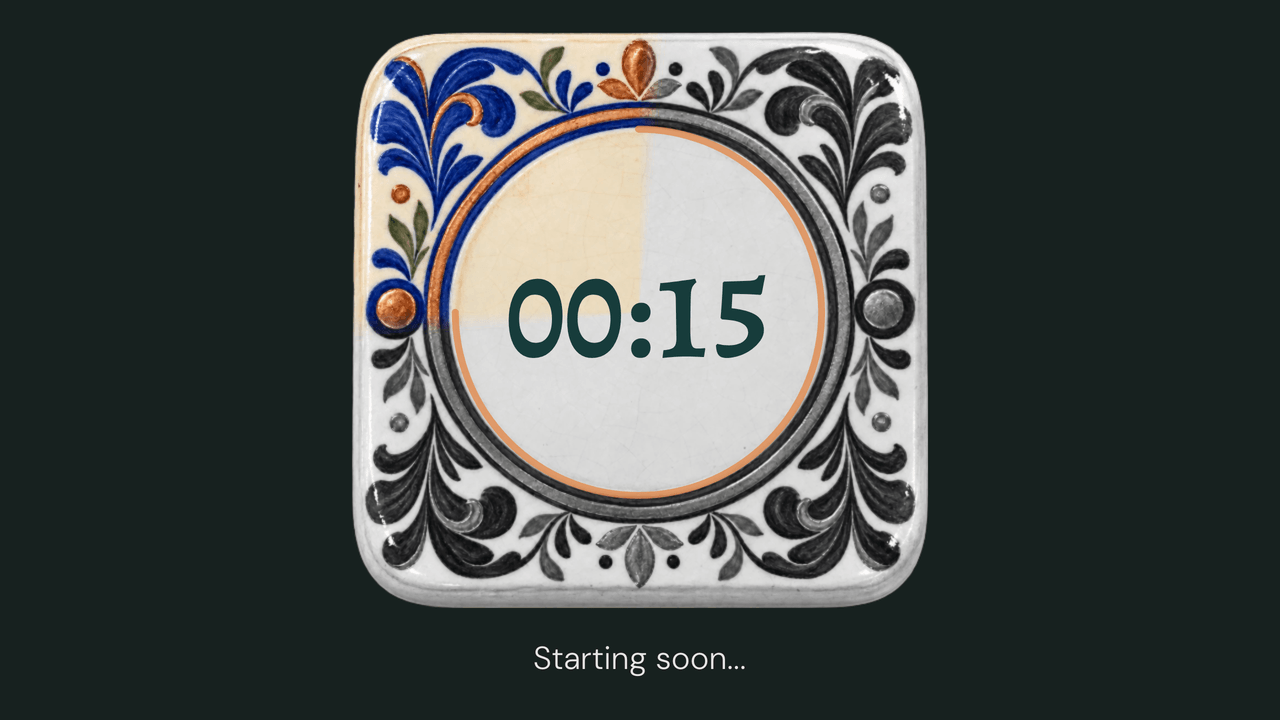
  • Ceramic Tile: final minute. 15 seconds left of a 5-minute timer.

    Final minute15 seconds left of a 5-minute timer.

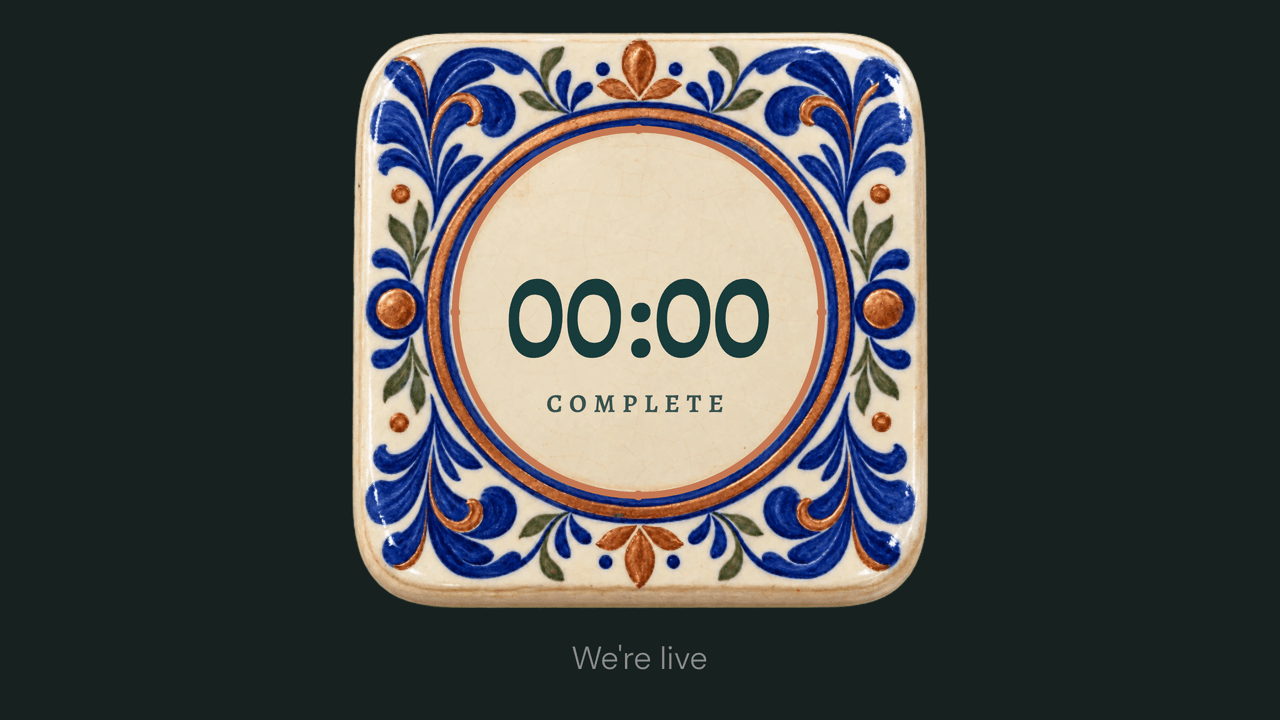
  • Ceramic Tile: zero. The end message replaces the message.

    ZeroThe end message replaces the message.

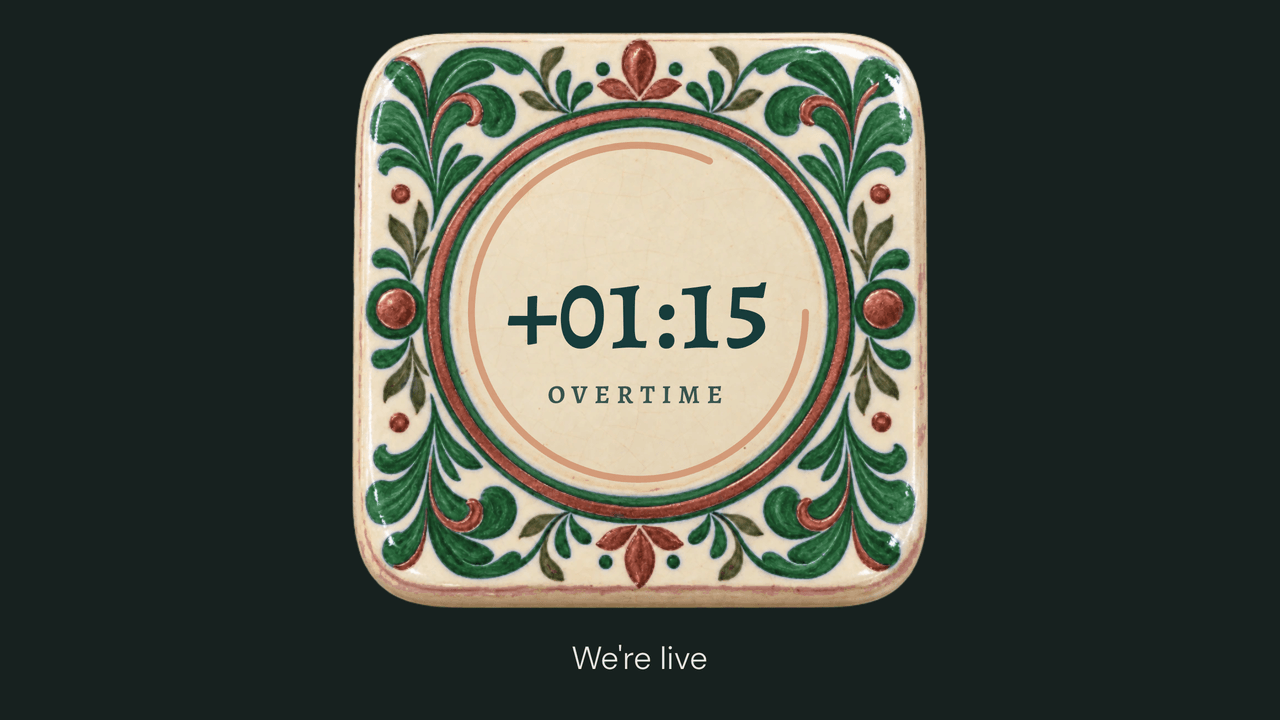
  • Ceramic Tile: overtime. Counting up past zero, 1:15 over.

    OvertimeCounting up past zero, 1:15 over.

  • Ceramic Tile: count up. A stopwatch, 12:34 in.

    Count upA stopwatch, 12:34 in.

  • Ceramic Tile: paused. Stopped mid-run at 2:17.

    PausedStopped mid-run at 2:17.

How Ceramic Tile works

The glazes cycle blue, gray, green, gray. Each pour takes exactly one minute, so the seam's position is the second hand. The last minute closes an ember ring around the digits.

Count-up pours the same way, starting from the blue glaze. It shows elapsed time only, with no target and nothing that drains.

What can I change?

Pick the background color behind the tile, or make it transparent and let the tile sit over your scene.

Ceramic Tile controls its own glazes and its serif digit face. A saved bar, ring, timer color, digit-font, or font-size setting doesn't change the design. Duration, clock targets, messages, start triggers, resume, and overtime still work.

What happens at the end?

The kiln pours one last blue glaze and rests, and a copper ring closes around the time. Overtime switches the face to the green glaze and keeps counting.

Theme controls

  • Ground color

    Pick the ground color behind Ceramic Tile.

  • Transparent mode

    Remove the full background and show the timer over your OBS scene.

A plain timer stays ready.

TimerBox shows a visual theme only after the full display is ready. If the theme cannot start or stops drawing, a plain digit timer takes its place.